Frequently Asked Question
How to use my Horizon Desktop App
Last Updated 7 years ago
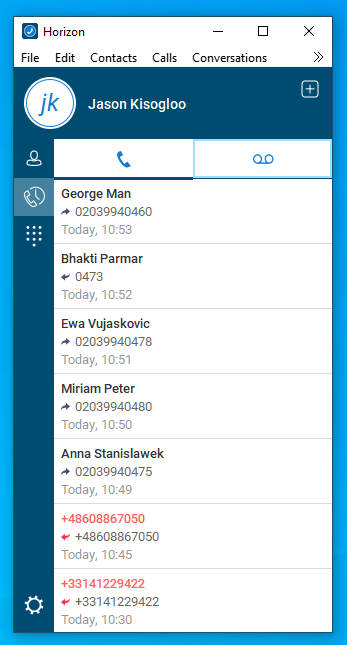
Recent Calls List:
Black - Calls that were Answered
Red - Missed Incoming Calls
Right click on any of these numbers for calling options:
Call - Call from the desktop app
Call from phone - to Call from your Polycom desktop phone
Copy Phone Number - Copies the number into your clipboard making it available for pasting...
View Profile - Shows the contact card for this contact.
Add to Contacts - Will add the contact to your individual Contacts database.
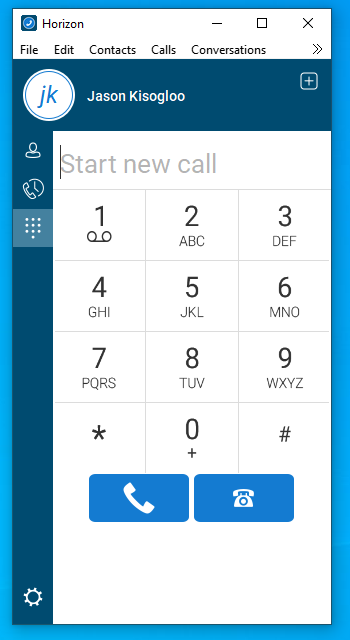
Dial Pad:
Start New Call: You can copy and paste a Telephone number in here...
Handset Button: Calls directly from APP. (Headset needed)
Telephone Button: Calls from your desktop Telephone.
In Call Options (left to right):
Call Time (Call Digits on left) - Shows the duration of the current call.
Hang up (Red Handset) - To end the current call.
Mute (Microphone) - To mute your microphone so you cannot be heard.
Transfer (Telephone with arrow to right) - To Transfer a call to somebody else.
Conference (Thee people) - To add a contact to the call for conferencing, this must be done one by one (once the person is added you can push the button again to add another and so on...)
Park Call (Circle with P) - To Park a cold on hold while you make another call... Later you can pick this back up.
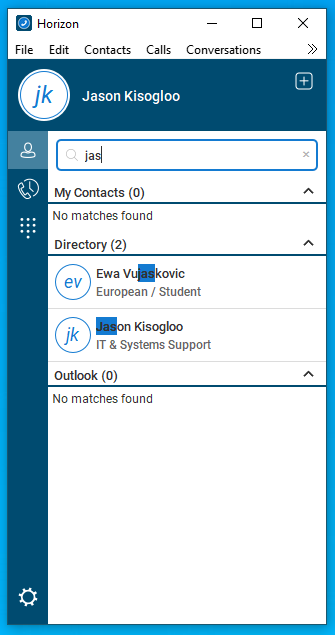
Directory:
This will appear blank until you search by either typing in 3 consecutive letters of the contact or at least three consecutive digits of the Contact....
Right clicking on any of the returned results will give you the same call options as in recent calls:
Call - Call from the desktop app
Call from phone - to Call from your Polycom desktop phone
Copy Phone Number - Copies the number into your clipboard making it available for pasting...
View Profile - Shows the contact card for this contact.
Add to Contacts - Will add the contact to your individual Contacts database.
For Full instructions manual for Horizon Desktop App see attached PDF.
Black - Calls that were Answered
Red - Missed Incoming Calls
Right click on any of these numbers for calling options:
Call - Call from the desktop app
Call from phone - to Call from your Polycom desktop phone
Copy Phone Number - Copies the number into your clipboard making it available for pasting...
View Profile - Shows the contact card for this contact.
Add to Contacts - Will add the contact to your individual Contacts database.
Dial Pad:
Start New Call: You can copy and paste a Telephone number in here...
Handset Button: Calls directly from APP. (Headset needed)
Telephone Button: Calls from your desktop Telephone.
In Call Options (left to right):
Call Time (Call Digits on left) - Shows the duration of the current call.
Hang up (Red Handset) - To end the current call.
Mute (Microphone) - To mute your microphone so you cannot be heard.
Transfer (Telephone with arrow to right) - To Transfer a call to somebody else.
Conference (Thee people) - To add a contact to the call for conferencing, this must be done one by one (once the person is added you can push the button again to add another and so on...)
Park Call (Circle with P) - To Park a cold on hold while you make another call... Later you can pick this back up.
Directory:
This will appear blank until you search by either typing in 3 consecutive letters of the contact or at least three consecutive digits of the Contact....
Right clicking on any of the returned results will give you the same call options as in recent calls:
Call - Call from the desktop app
Call from phone - to Call from your Polycom desktop phone
Copy Phone Number - Copies the number into your clipboard making it available for pasting...
View Profile - Shows the contact card for this contact.
Add to Contacts - Will add the contact to your individual Contacts database.
For Full instructions manual for Horizon Desktop App see attached PDF.